19

Few years ago, I changed color scheme of command prompt. Now, I have forgotten how exactly I did this.

  1. It's permanent. So, COLOR command is out of question.
  2. It's intact no matter from where I launch cmd. So, changing color from shortcut properties is out of question because I get the color scheme even when I launch cmd from Run or from original location.
  3. It doesn't let me override it by shortcut properties. And, this is the problem. I create a cmd shortcut and change its color scheme from properties. But, this isn't reflected even after reboot.

So, the only option I have left: Use the same method I used few years ago. How did I change cmd color?

user79032
  • 4,100
  • 4
  • 31
  • 49

5 Answers5

17

The correct way to permanently set the colors (and other parameters) of a console/command-prompt is to:

  1. Open a command-prompt
  2. Right-click the titlebar or press Alt+Space
  3. Select Defaults from the context-menu
  4. Set the properties you would like (colors on the Colors tab)
  5. Click OK

The method that Tapped-Out gave works because Windows 7 happens to have a bug where the Properties option modifies the default values instead of just for the current console, and it could be fixed at any time.

The method that Indrek gave works as well, but using the provided interface is easier (and safer) than manually editing the registry, especially when setting the colors since you don’t have to mess around with hexadecimal values. Also, you don’t have to worry about setting permissions with the interface.

Finally, a word of warning. Each console type gets its own set of parameters, as does each shortcut to a console. In other words, if you create a shortcut to a console, changing the parameters will modify the shortcut and apply only to the console opened by the shortcut, not via other shortcuts or means. Also, if you run a console application and modify the parameters, they will be applied only to that console application and not to other consoles such as the command-prompt.

To clarify, what happens is that all consoles (command-prompts and console apps) use the default settings (stored in HKCU\Console) until they are specifically changed, at which point they will make a copy of those settings and use those from then on. For example, if you open edit.com, it will initially use the settings in HKCU\Console, but if you make changes to it, a copy will be made to HKCU\Console\c:windows_system32_edit.com, and changes to the defaults will no longer be reflected because settings specific to command.com exist (and override the defaults). This is similar to how user settings override system settings (e.g. HKCU overrides HKLM defaults).

Synetech
  • 68,243
  • 36
  • 223
  • 356
  • I don't get your last paragraph. I use command-line vim to edit text files. When I change color scheme from cmd shortcut properties, same scheme is applied to vim file editing console. How? – user79032 May 27 '12 at 00:21
  • 1
    All consoles use the defaults, but if you then set the paramters for a specific console app, it will make a copy specifically for that app and those will be used from then on. When you change the normal command-prompt settings, VIM is using those, but if you then make a change to VIM itself, it will use those and stop using the default one. I’ll edit the answer to expand on this. – Synetech May 27 '12 at 00:33
  • But, cmd shortcut properties aren't global defaults. How does VIM get that? – user79032 May 27 '12 at 00:48
  • Like I said, *all* consoles that don’t have their own specific properties use the defaults in `HKCU\Console`. Command-line VIM is a console app and so uses the console subsystem, so when it runs CSRSS gives it the default settings from there just like any other console app. If you change the settings for VIM, it will use those instead. If you make a shortcut to VIM, you can change the settings for just that shortcut and have VIM use the defaults when launched in other ways. You can even make several shortcuts, each with their own settings. – Synetech May 27 '12 at 12:49
  • No.. No... I am not talking about VIM shortcut. I am talking about cmd shortcut. VIM console takes color scheme of cmd console from which you have initiated it. You can test it. – user79032 May 27 '12 at 15:36
  • I don't have VIM and I don't know what you are talking about. You talk about a shortcut, but then you say you run it from a console. Those are mutually exclusive. – Synetech May 29 '12 at 02:18
  • I am talking about this: I am launching cmd using shortcut (having custom color scheme). When I run `vim filename` command in cmd, VIM console is launched. I am talking about this console which is using color scheme from cmd shortcut. – user79032 May 29 '12 at 02:41
  • Yes, that's totally normal. The shortcut sets the active colors for that console instance. VIM does not change the colors, it just uses print commands to send text to the screen. When you print text without specifying the colors to use, the console subsystem uses whatever the current/active colors are. If the console is set to use blue for text and green for the background, then if you run `dir`, it will print blue on green (`dir` does not know, use, or care about the current colors). If you run another program that prints some stuff to the screen, it will also print blue on green. – Synetech May 29 '12 at 17:53
  • VIM isn't like `dir` command.. Its a console. Explain it: When I change color scheme of VIM console, the changes aren't reflected back to cmd. Why? – user79032 May 29 '12 at 18:00
  • Do this: launch VIM.. Right click title bar, go to properties and change color scheme. Then, quit VIM by `:q`. You can see what I have just said. – user79032 May 29 '12 at 18:05
  • It’s **NOT VIM** that is changing the colors; it is the console subsystem. When you change the colors, you tell the console instance to use those colors for text. When programs like VIM print text, they know nothing about colors, only text. So when they use `printf` to send some text to the screen, the console subsystem receives the `printf` function and prints the text in whatever colors are the currently selected ones. If you change the colors, VIM still doesn’t know anything about it; the console does and redraws the screen with the new colors and prints new text in that color. – Synetech May 30 '12 at 08:18
  • Again, try doing a `dir`. It will print in whatever the current colors are. Now change the colors and you’ll see that the console window changes, and if you do another `dir`, it will be in the new ones. `dir` has nothing to do with color (unlike `ls`), so it only sends text to screen, not colors. In fact, there is [not any practical way](http://msdn.microsoft.com/en-us/library/ms682073.aspx) to even find out about the active colors of the console; a (Windows API/console-aware) program can only *set* the colors, not read them. – Synetech May 30 '12 at 08:23
  • But, what's this: Change cmd color, VIM color is changed. But, reverse isn't applicable: Change VIM color, cmd color isn't changed. Why? – user79032 May 30 '12 at 08:33
  • Because when a program *does* use specific colors for its text, it *only applies to that specific text*. (There is the `SetConsoleTextAttribute` function which sets the default colors for the console and all subsequent text, but most programs don't use that, they use the basic one.) Think of it as though there is a `printf(str)` function that prints simple text in the current colors, `printfc(str,fore,back)` that prints text with the specified colors, `setcolors(fore, back)` that affects new next from just the program, and `setconcolors(fore,back)` that sets the colors for the whole console. – Synetech May 30 '12 at 16:57
  • This should be the accepted answer. – Jan Kukacka Aug 07 '17 at 12:31
11

The cmd colours can be changed in the registry.

Navigate to HKEY_CURRENT_USER\Software\Microsoft\Command Processor and check the DefaultColor entry. Default value is 0 (zero). To change the colours, enter a value of two hexadecimal digits, the first one specifying the background colour, and the second one the text colour. Possible values are as follows:

0 - black
1 - blue
2 - green
3 - aqua
4 - red
5 - purple
6 - yellow
7 - white
8 - grey
9 - light blue
A - light green
B - light aqua
C - light red
D - light purple
E - light yellow
F - bright white

So for instance, a value of 4A will give you light green text on a red background.
Note that values where the two digits are the same are invalid, so you can't have the same colour for the text and the background.

If the above doesn't work, check the same entry under HKEY_LOCAL_MACHINE, you may have changed it there.

Indrek
  • 24,204
  • 14
  • 90
  • 93
  • Of course, you’ll have to restart the console after making the change for it to take effect. – Synetech Jun 28 '12 at 05:14
  • To access these settings, press [windows key]+[r], then key regedit.exe, then click OK to open the Registry Editor application. – David Alan Condit Sep 18 '18 at 14:19
  • Something very interesting happening. Your solution worked but for a brief moment the screen colour is purple. And after that millisecond it is white and black text. Why is it initially purple background ? Although I changed it in regedit. @Indrek – Pie Nov 27 '19 at 14:43
  • It is changing to white background and black text because I changed that value in regedit. But why is it purple background for a brief moment initially. – Pie Nov 28 '19 at 06:10
10

Actually change the windows console colors (change what 'blue' is)

To actually change the colors (theme) of the consoel (Powershell, cmd, bash, etc) for Windows 10, use Color Tool, which is procuced by Microsoft's console team.

colortool -b solarized_dark

Read more about colortool.

enter image description here

To change which color is used (pick a different color for blue from a limited set of colors)

Of course, you can try it with Command prompt itself, but you can only change the text color:

  1. click on the Command Prompt icon in the top left corner of the window and select Properties.
  2. Select the Colors tab, and then
  3. choose the color you want for the screen text and background. You can also enter your own RGB color combination if you want.
mikemaccana
  • 492
  • 5
  • 20
IgorBeaz
  • 201
  • 2
  • 4
3

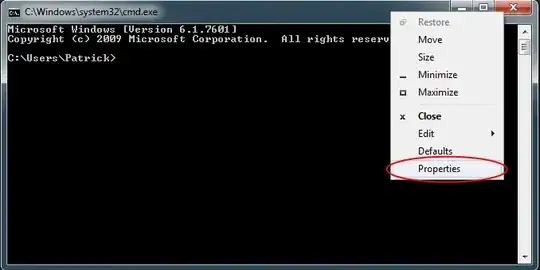
In cmd, right-click on the title bar and select properties:

title bar context menu

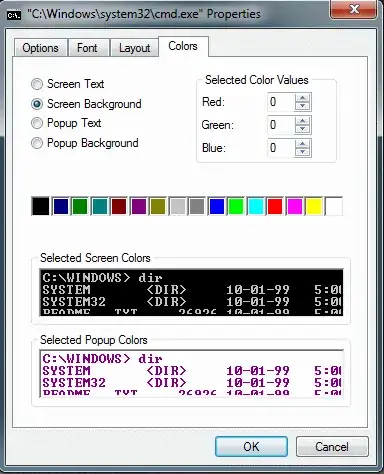
Click on the Colors tab:

properties - colors tab

You can change the command prompt's color settings here. From my testing, it globally alters the color scheme.

nc4pk
  • 9,037
  • 14
  • 59
  • 71
  • 1
    This is directly attached with shortcut properties. When session isn't launched from shortcut, its temporary... – user79032 May 26 '12 at 23:38
  • Well, you can also left click on cmd icon (on title bar) to get to there. – user79032 May 26 '12 at 23:39
  • I set custom colors this way and then ran it from the Run dialog (Win+R). The custom colors were retained across sessions. How is this temporary? – nc4pk May 28 '12 at 01:37
  • 1
    It's a known bug: http://superuser.com/questions/323059/temporarily-changing-console-properties-in-windows-7 – user79032 May 28 '12 at 05:57
1

No matter in which directory you are just use this command to change the text color:

color 0a, color will be changed to Green;
color 0b, color will be changed to Blue;
color 0c, color will be changed to Red.

Kamil Maciorowski
  • 69,815
  • 22
  • 136
  • 202