4

Possible Duplicate:
I can't delete a file - even when using unlocker

I tried all the tools from the question How do I delete a 'locked' file?, and they didn't help.

All the software suggested to download attempted to unlock my file, but they all failed. Additionally, booting into safe mode still didn't solve my problem.

When I try to delete the file (an ISO image that I created of the Windows 8 Install Checker), I get this error:
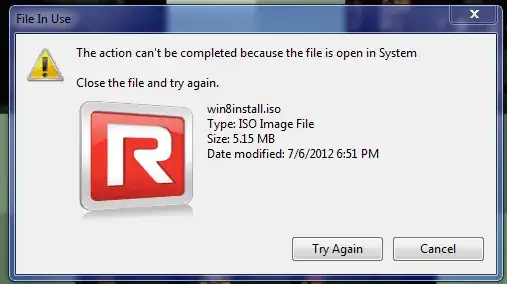
Error

I obviously can't end System.exe, that'd crash my computer. I've been trying to remove it daily, and it won't let me delete it, even right after a restart.

It's stored on my desktop, and I can't move it, because I get that error.

Mithical
  • 321
  • 1
  • 3
  • 14
Jon
  • 9,181
  • 39
  • 95
  • 127
  • @slhck none of the other answers worked, so I flagged for re-opening. Thanks for bringing that post to my attention, though, I didn't find it earlier! At least I now know what won't help. – Jon Aug 07 '12 at 19:43
  • 2
    Please include more information that just "it didn't work". This'll provide valuable information for others in attempting to solve your problem. – Daniel Beck Aug 07 '12 at 19:45
  • Is only this one file affected or other files as well? What types of files are affected? Only `.iso`? Are all files on the same partition? Maybe even the same folder? – Oliver Salzburg Aug 07 '12 at 20:07
  • Only this exact file. The .iso is a iso version of the Windows 8 install checker, so it doesn't run (I didn't understand what the iso would do when I made it). – Jon Aug 07 '12 at 20:16
  • 1
    You said you tried all the suggestions from the other answer. When you run Process Explorer, make sure you run **File** -> **Show Details for all Processes**. *Then* search for `win8install.iso` (Ctrl+F). Does it find anything? If so, what process/service does it highlight? – Oliver Salzburg Aug 07 '12 at 20:31

4 Answers4

4

Is it possible that you've accidentally mounted the ISO to a virtual drive? If so you might just need to unmount it before trying to delete or move the file.

curmil
  • 1,025
  • 2
  • 9
  • 8
  • You may have double clicked on the iso file or right clicked iso file and mounted it (or opened it). This is like opening a zip file with WinZip and trying to delete the zip file when it is still opened. To close or unmount the opened or mounted iso file, in Windows Explorer go to My Computer and if you see a drive "E:\" then right click that drive and unmount or close it. The i – curtisp Nov 08 '16 at 18:43
2

You can schedule the file to be delete the next time you boot. It will be deleted early in the boot process, before any programs access it. I prefer BitSum’s tool movelater; for example:

movelater C:\Users\Chippery\Desktop\win8install.iso /d

You can also use Sysinternal’s MoveFile:

movefile C:\Users\Chippery\Desktop\win8install.iso ""


That takes care of the file, but that it is always locked by the system process when you boot indicates an ongoing usage which may cause problems if you delete the file and the system tries to access it.

Because the system process is the one locking it, it is likely a driver that is using it. Because it is an ISO file, it seems that you have mounted the disc image in a program that is using a driver to emulate a CD/DVD.

As curmil suggested, it is best if instead of just forcing a delete of the file on boot, you run the mounting program and unmount the image and you should find that the file is no longer in use. If it is, then a reboot should free it up, without needing to resort to the above tools.

Synetech
  • 68,243
  • 36
  • 223
  • 356
1

If nothing else works, linux live cd/usb is definitely an option. Boot up a Linux live USB and just deleted from there.

kranberg
  • 119
  • 2
1

You can try with disabling the virtual drive listed in the device manager or if you can change the extension to something different could help you to delete that file.

Hope it helps.

Ahmed Bilfaqih
  • 1,954
  • 4
  • 17
  • 21
  • 1
    In Windows 10 - If you are using Hyper-V it will also lock the ISO files, and they will appear as in use by System. This is fixed by un-mounting the ISOs in Hyper-V Manager. – IceMage Jan 06 '16 at 18:40