15

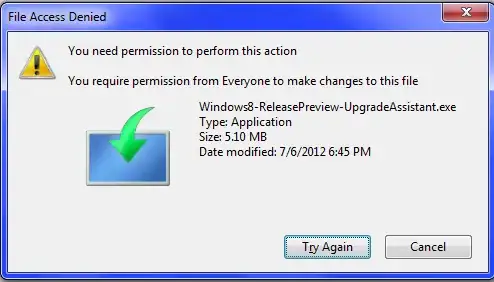
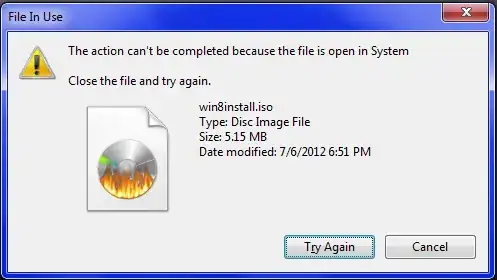
Ok, so when I try to delete this from my desktop, I get this error:

enter image description here

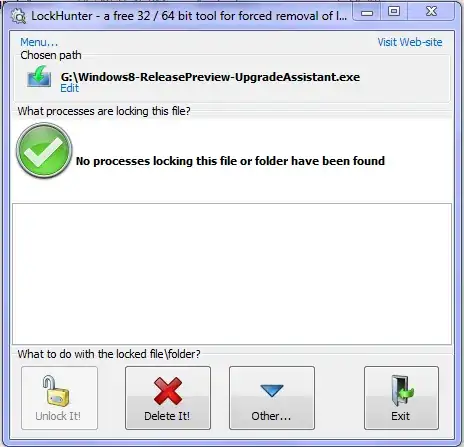
When I click "See what's locking this" in lock hunter, I get this:

enter image description here

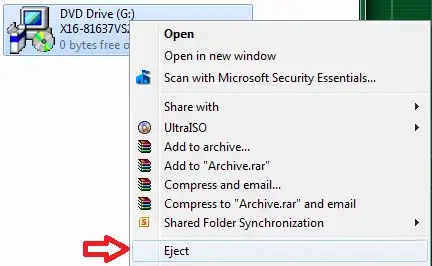
Now, I have a drive, called G:. I only have one physical drive, and it's D:. Also, I have NO virtual drive software installed, so I have NO clue how it got there. Right-clicking on G:\ and chosing eject doesn't do anything but change the logo, it still says the file size and whatnot. Here's the picture of the "What's locking this?" of the contained file:

enter image description here

But when I try to delete it...

enter image description here

Both of these files don't let me delete them. I had put win8install.iso as a virtual drive a while back, but I uninstalled that software (but can reinstall it if needed)

Starting this in safe mode doesn't work.

wonea
  • 1,817
  • 1
  • 23
  • 42
Jon
  • 9,181
  • 39
  • 95
  • 127
  • 1
    Did you try rebooting in Safe Mode and deleting it? – Ƭᴇcʜιᴇ007 Sep 03 '12 at 20:07
  • @techie007 that doesn't work either. – Jon Sep 03 '12 at 20:14
  • 1
    Have you mounted the ISO to a virtual CD drive? – Indrek Sep 03 '12 at 20:34
  • @Indrek no, I don't currently have any virtual CD drives installed. – Jon Sep 03 '12 at 20:44
  • Have you run a disk check to rule out file system corruption? – Ƭᴇcʜιᴇ007 Sep 03 '12 at 20:59
  • Check out my [this answer](http://superuser.com/questions/440641/deleting-folders-give-access-denied-error-message-on-windows-7-although-i-am-ad/440645#440645) and try **bootdelete** which is a good option. – avirk Sep 04 '12 at 02:08
  • Is `Windows8-ReleasePreview-UpgradeAssistant.exe` running? Did you try stopping/killing `Windows8-ReleasePreview-UpgradeAssistant.exe`? – Synetech Sep 30 '12 at 03:59
  • It isn't running. – Jon Sep 30 '12 at 04:36
  • Have you tried the bootdelete which I linked in my answer? What error you got in safe mode? – avirk Sep 30 '12 at 17:24
  • @avirk My desktop doesn't appear in safemode for some reason. My background/icons/etc. – Jon Sep 30 '12 at 20:36
  • @chipperyman573 : This G drive... is it a shared drive of any sorts or a virtual drive created using the `subst` command in windows? – Vrushank Oct 01 '12 at 04:07
  • 1
    @chipperyman573 : Also could you please post a screenshot by trying to unlock using Unlocker x64 in case you haven't done so? – Vrushank Oct 01 '12 at 04:17
  • @chipperyman573: That's already your third post here about this same problem : [post1](http://superuser.com/questions/458789/i-cant-delete-a-file-its-in-use-by-the-system-but-it-isnt) and [post2](http://superuser.com/questions/480588/i-cant-delete-a-shortcut-even-though-both-magic-unlocker-and-lock-hunter-say-n). – harrymc Oct 01 '12 at 08:49
  • @harrymc For the first one, I forgot about it. For the second, I posted it after then realized that I probably should have just attached a bounty to my first one – Jon Oct 01 '12 at 23:41
  • @VrushankDesai Unlocker doesn't error, it just force closes. – Jon Oct 01 '12 at 23:43

6 Answers6

6

Get a Linux Live Cd, and get gparted, systemrescue or parted magic (any release would work, but a small distro for something quick). Burn it to cd/usb, and boot your computer to it. Mount the hd, and find the folder and delete it.

You can use Unetbootin to create the live cd or do it manually.

Logman
  • 3,640
  • 1
  • 19
  • 30
4

Use Process Explorer to identify which process is keeping an open handle to the file.

  1. Click Find > Find Handle or DLL...
  2. Enter win8image.iso
  3. Click Search

Then make the program close its handle. In your case the issue might be that the ISO image is still connected to a virtual machine or a virtual drive.

Ansgar Wiechers
  • 5,400
  • 2
  • 21
  • 23
  • This is what I get after I click search and it searches: http://i.imgur.com/B0Nqo.png – Jon Sep 03 '12 at 20:46
  • 1
    @chipperyman573 Did you run Process Explorer "as Administrator"? – Ƭᴇcʜιᴇ007 Sep 03 '12 at 21:00
  • This is what I get when I run it with UAC: http://i.imgur.com/As73k.png – Jon Sep 03 '12 at 21:02
  • This is PID 4: http://i.imgur.com/T9tV7.png – Jon Sep 03 '12 at 21:03
  • Like I said, I strongly suspect that the image is still connected to some virtual machine or drive. – Ansgar Wiechers Sep 03 '12 at 21:53
  • 1
    @AnsgarWiechers I have no virtual machine installed. – Jon Sep 04 '12 at 02:41
  • 1
    Strange. You said you have UAC enabled. Can you delete the file when you *disable* UAC? Also, when you run `Process Explorer` "as Administrator", display the lower pane (`View > Show Lower Pane`) and search for the handle again, can you manually close the handle (right click > `Close Handle`)? – Ansgar Wiechers Sep 04 '12 at 09:39
  • 1
    @chipperyman573, `System` means that it is loaded via a driver. You may not have it *mounted* as a drive-letter, but it is *open* with some sort of mounting program’s driver. – Synetech Sep 30 '12 at 01:17
  • 1
    @Synetech I don't have ANY mounting drivers installed. I spent two hours last night researching every driver I had installed - none of them mounted virtual drives. – Jon Sep 30 '12 at 01:21
  • @AnsgarWiechers I disabled UAC, still didn't work. – Jon Sep 30 '12 at 01:23
  • @Synetech, Hmm, how did you know that "`System` means that it is loaded via a driver"? – Pacerier Jun 08 '15 at 20:03
3

If none software is doing the job then you can use the OLD IS GOLD formula and that is command prompt. If you want to delete the file from the running Windows then open the elevated-command prompt(command prompt window with admin rights). For this click on the start menu and then type CMD in search box and right click on the cmd.exe and then click on the option Run as Administrator.

Now open the Windows explorer and click on the Organize > Folder and Search Option.
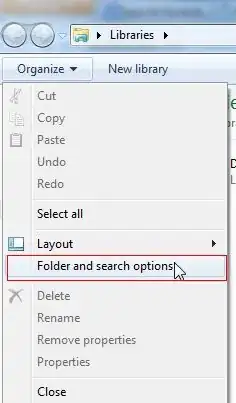
enter image description here

Now unchecked the option Hide extension for known file types and click OK. And go to method 1 or 2.
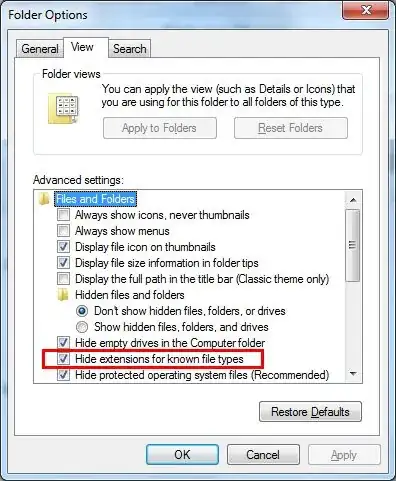
enter image description here

To Use a Command Prompt at Boot

a. To Use a Command Prompt at Boot

b. In the command prompt, type diskpart and press Enter.

c. In the command prompt, type list volume and press Enter.

d. After making note of the drive letter, type exit and press Enter.

Method 1

To Delete a Specific File in Command Prompt

In the command prompt, type the command below and press enter.

DEL /F /S /Q /A "Full Path of File with extension"

Example

DEL /F /S /Q /A "C:\Users\UserName\Desktop\File.txt"

File should be deleted now.

Method 2.

To Delete All Files in a Folder without Confirmation in Command Prompt

In the command prompt, type the command below and press enter.

DEL /F /S /Q /A "Full Path of Folder*"

File should be deleted now.

Close the command prompt.

NOTE: If you used a command prompt at boot, then also close the System Recovery Options window and restart the computer.

For more information you can check out this Sevenforum article.
avirk
  • 15,689
  • 16
  • 59
  • 104
  • 1
    With the first method: http://i.imgur.com/OLUQs.png. As for the second method, I don't want to delete my desktop. – Jon Oct 05 '12 at 00:12
  • Did you tried the command prompt in safe mode? Also try the command prompt at the boot time and try to delete the file. I have given the link in my answer that [how to open command prompt at boot time](http://www.sevenforums.com/tutorials/682-command-prompt-startup.html) for that you just need a Windows 7 repair/installation disc. – avirk Oct 05 '12 at 01:31
  • Also have you tried bootdelete to delete the file? – avirk Oct 05 '12 at 04:14
  • 1
    Yes. Still didn't work. – Jon Oct 05 '12 at 22:37
  • What happened when you tried to command prompt at boot time? – avirk Oct 06 '12 at 01:17
  • It just crashed. – Jon Oct 06 '12 at 02:03
  • 1
    Command prompt crashed or you talking about the bootdelete? If none is working then linux live cd will help you, which you don't need to install just put it the drive and play it and it will let you delete this stuff. – avirk Oct 06 '12 at 02:07
  • this didnt work for me either. folder contains a folder called `ModifiableWindowsApps`, cant delete either. i was able to rename the parent folder, i keep it named `del` as a reminder. – Brian Thomas Mar 29 '21 at 22:53
  • @BrianThomas you tried with unlocker or not? – avirk Mar 30 '21 at 04:15
  • Yes, unlocker fails – Brian Thomas Mar 30 '21 at 22:21
2

Windows includes the ability to mark files for deletion upon reboot. This ensures the files are not in use at the time as they are deleted by the system before Windows starts completely.

An application such as this one exposes this functionality to the end user.

Edit: I would recommend MoveFile as it is from a reputable source (Thanks Ansgar).

Luke
  • 31
  • 4
  • Another option would be Sysinternals' [MoveFiles](http://technet.microsoft.com/en-us/sysinternals/bb897556). – Ansgar Wiechers Sep 04 '12 at 09:29
  • Of course, I had forgotten about this one. – Luke Sep 04 '12 at 22:44
  • I wouldn’t recommend deleting the file like that willy-nilly. If something is using it, then by deleting it, you may break something (that could end up crashing the whole system). It is better to find out *where/what* is locking it and stop that. – Synetech Sep 30 '12 at 01:16
2

Take ownership of the ISO file and then delete it. This happens sometimes on my Win7 x64 as well.

You may also want to consider adding this option in the right-click menu so you can take ownership of any NEW file before you start working with it.

On a side note, Unlocker now has a 64-bit version too.. :)

Vrushank
  • 245
  • 1
  • 2
  • 11
  • 2
    +1 for mentioning 64-bit version, most of the user's install the 32-bit version and puzzled on 64-bit Windows. – avirk Sep 26 '12 at 00:52
  • 1
    I'm already the owner of the file and I can't delete it. – Jon Sep 30 '12 at 01:07
  • @chipperyman573, you may be the owner, but you also need permissions (permission ***s***, not permission). Use the security tab to add write/delete permissions for your user account to the file’s ACL (access control list). – Synetech Sep 30 '12 at 01:15
  • 1
    I have all of them – Jon Sep 30 '12 at 01:20
  • You need permissions for `Windows8-ReleasePreview-UpgradeAssistant.exe`, the ISO file is locked because it’s open (two different casues of locked files). – Synetech Sep 30 '12 at 03:59
1

It is possible that win8install.iso is mounted as a virtual drive in Windows.
Since Windows 8, any .iso can be mounted natively without the need for third-party software.

You can find a description of the process in How to Mount or Unmount ISO images in Windows 8.

You can verify whether this is the case by calling Windows Explorer :

image

harrymc
  • 455,459
  • 31
  • 526
  • 924