I just bought a new Windows 8 laptop, but I want to get rid of the new "Modern UI" Start Screen, and get the old Start Menu back. How do I do this?
Asked
Active
Viewed 9.2k times
136

-
5Good question (+1) but can you say why? I don't think it's going away in Windows (it's obvious if you have a Windows Phone or Xbox). I don't know about disabling the Win8 Start Screen, but it stopped frustrating me so much once i realized that it's really similar to Win7... if you think of it as a full-screen Win7 Start Menu. The desktop is there, you just have to switch the Win8 "Start Menu/Screen" to the background. (Yeah, Metro vs. older apps is twitchy, and there are other oddities.) I could be off on this, but that's how i'm easing into it. – b w Aug 21 '12 at 20:27
-
@billweaver - honestly, I actually love the Start Screen. I was adding this question to help out with http://meta.superuser.com/questions/5426/lets-get-started-with-windows-8?cb=1 – MatthewSot Aug 22 '12 at 00:18
-
1oh, i see. I have this ... trepidation about how the people i support are going to react to the goodness of Win8. It **is** the future and they **must** adapt, but am wondering how to make that easier for them. So anyhow your question got me curious about *why* you'd want to hide it. Trying to get prepare for the whining. :) – b w Aug 22 '12 at 16:00
-
3How is it possible you purchased a "Windows 8" laptop when they are not even being sold yet? Its not possible to have the "old" Start Menu back, the artwork and all code was removed from Windows 8, all you can do add a replacement Start Menu. – Ramhound Aug 23 '12 at 11:36
-
1One use for this is for computers with internet monitoring software that hasn't been updated for Win8 yet. Most of those were written with LSPs, which don't see the network traffic from the Metro version of Internet Explorer. – jeffm Aug 23 '12 at 18:18
-
4(-1) as I feel that this question isn't going to be that useful. The new modern UI (metro) is a major change and an integral one to Windows 8. If you really want to get rid of it then don't install Windows 8 and use Windows 7 instead. With as integral of a piece this is, any solutions IMO are going to be hackish at best and even possibly a security risk. – James Mertz Aug 28 '12 at 15:37
-
14@KronoS that's your opinion, and you're welcome to feel that way. Inevitably though, people _are going to want to do this_. It might be a bad idea. I don't intend to do it, and wouldn't advise someone to do it, but it will easily be one of the most-asked questions about Windows 8. If you'd like to write an answer that goes more the route of "here's how to cope with Metro without disabling it", go for it. – nhinkle Aug 28 '12 at 16:53
-
@KronoS -5 so much for what consumers want, this silly move by Microsoft to "Be more like a Mac" will cost them customers in the near future, like it or not people who buy a new PC will have W8 preloaded and will Not like the new UI and just need their desktop to be functional when using older non "app" software and a mouse. – Moab Aug 29 '12 at 14:18
-
@Moab - but why would an average user do that - especially if they buy a tablet? what do desktop apps offer to the average user that a Metro app can't do better? just curious to see what you think :) – MatthewSot Aug 29 '12 at 22:41
-
@MatthewThepc I understand the start screen on a tablet, I have over a thousand desktop apps that I use in windows from time to time, metro is for the younger generation that does not do more the 5 things on a tablet or smartphone, its an end of the computing age as I know it. – Moab Aug 30 '12 at 00:26
-
@Moab - don't you think "it's an end to the computing age as I know it" is a bit harsh? the desktop is still there (and pretty easy to access) for you "powerusers" :P – MatthewSot Aug 30 '12 at 01:13
-
@MatthewThepc for now, its clear MS is going to abandon the win32 software model in future versions, beginning of the end is more appropriate. – Moab Aug 30 '12 at 04:06
-
@Moab I resent you implying that the "younger generation" doesn't do advanced stuff on computers (I'm living proof), my generation is probably not as tech savvy as the previous generations, but its not that far behind... I believe the only reason some people refer to my generation as MORE tech savvy, is actually because developers are getting better at writing apps. – Oztaco Sep 02 '12 at 01:47
-
"advanced stuff" never said that, everybody is on the app bandwagon due to potential profits, computers are turning into nothing but spending portals, its a shame. – Moab Sep 02 '12 at 03:03
-
@ekaj - I would have accepted my answer, but I was worried that that would come across as biased. – MatthewSot Sep 19 '12 at 23:09
-
but if you think it needs an accepted answer, would anyone be against me accepting my own answer (since it has the most votes)? – MatthewSot Sep 19 '12 at 23:09
-
Considering your answer is in the lead by 25 votes, I don't think anyone will care - if only I had seen this topic back in August =p – cutrightjm Sep 20 '12 at 00:29
-
No, there are third-party programs, but ALL artwork was removed. There are dozens of articles on this subject, I suggest, doing a quick google search. – Ramhound Nov 03 '12 at 01:28
-
Windows and Office GUI degrades from version to version. – Suzan Cioc Jan 16 '13 at 20:12
-
possible duplicate of [How can I revert back to the old Start menu in Windows 8 Preview?](http://superuser.com/questions/335766/how-can-i-revert-back-to-the-old-start-menu-in-windows-8-preview) – Zombo Feb 18 '14 at 20:02
9 Answers
82
In Windows 8 (from the Consumer Preview up to the final release), there is no known way built-in to disable the new "Modern" UI.
If you feel comfortable using third-party programs and hacks to get rid of (or minimize the use of) Modern UI, you can try:
Start8, which will give you a start menu (you can choose between a Windows 7-style start menu or a Modern start menu) and allow you to bypass the Modern UI Start Screen altogether, but it won't altogether disable Modern UI, since you'll still be able to access the charms bar and the Modern UI task switcher.
You can use this Classic Shell skin to get a close-enough replica of the Windows 7 Start Menu. This will not disable any part of Modern UI, nor will it boot you directly into the Desktop, but it will give you a Windows 7-style start button and menu.
If you would like to do away completely with Modern UI, you can use this trick, which allows you to use the Windows 7 shell (explorer.exe) in place of the Windows 8 shell. This option will send you right back to the Windows 7 experience, but remember to read the "please read" section of that post to know just what you're getting yourself into.
You can make this registry change to disable the new lock screen.
Windows Registry Editor Version 5.00

[HKEY_LOCAL_MACHINE\SOFTWARE\Policies\Microsoft\Windows\Personalization]
"NoLockScreen"=dword:00000001
This won't let you use the Windows 7 or XP login screens, but it will allow you to skip the lock ("drag up to unlock") screen, and be sent straight to the screen where you enter your password.
In Windows 8.1, though, there are a few more built-in ways to avoid the Modern UI:
- Right-click the Taskbar and select "Properties"
- Under the Navigation tab, you'll see a few checkboxes under "Start screen" that will let you set things like boot-to-desktop. If you want to completely get rid of the Start Screen, or add a Start Menu, you'll still have to use one of the methods above.

kinokijuf
- 8,175
- 9
- 54
- 97

MatthewSot
- 3,647
- 3
- 24
- 35
-
This is an excellent start. It might be interesting to do a blog post comparing some of these options in detail. Once I get my hands on the RTM I'll give it a go. – nhinkle Aug 18 '12 at 23:35
-
4`+1` I recommend Classic Shell SM, instead of Start8, having used both. Classic Shell has made Windows 8 perfect for me. I only want to use Metro apps on a Windows RT tablet, but I can understand why Microsoft has done this - to give the new platform exposure, leveraging hundreds of millions of Windows users to play catchup in a increasingly important market, which is crucial for the company's survival as a dominant technology company. – paradroid Aug 23 '12 at 23:03
-
Actually, now Start8 is better. It has recently been updated to be pretty much *exactly* the same as the Windows 7 Start Menu. All that is currently missing is UNC path search and it is a bit too translucent. – paradroid Sep 01 '12 at 14:07
-
-
@harrymc - you can skip it, but there's no "built in way to disable the Modern UI in Windows 8." The suggestions you posted allow the user to bypass the start screen when they load up, but after that they can still press the "Start" button to get to it, and the charms bar still appears (among other things) – MatthewSot Dec 16 '12 at 16:29
-
I would go for Okki Menu http://alternativeto.net/software/pokki-menu/ – Nam G VU Jun 15 '13 at 03:30
31
For RTM Windows 8 there is an app to bypass the Start Screen and go to the desktop on boot.
I installed it on the Enterprise RTM trial, works like a charm.
such irony it took an "app"" to bypass the app start screen
http://winaero.com/comment.php?comment.news.103
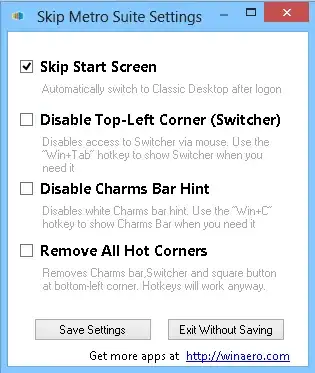
.
UPDATE: It installs a Service that executes the installed program
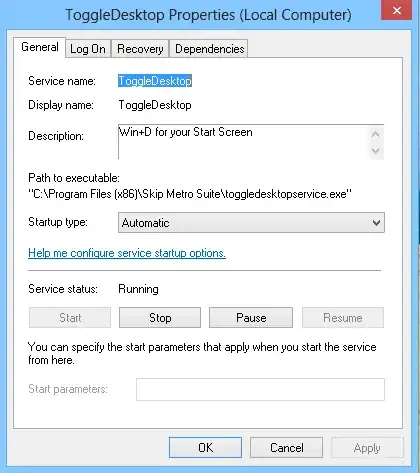
.
I have also found Windows 7 Explorer for Windows 8 v1 there is a link to a video for you to see it in action. Installed on my W8 Enterprise Eval RTM, works like a charm, skips the start screen and brings back the original Windows 7 start menu and orb. There are side effect though, it changes (breaks) most of the Windows key functions in the New UI.

Moab
- 58,044
- 21
- 113
- 176
-
If I'm not getting you wrong then it will bring the Win 7 desktop back where we don't need `Win` key – avirk Aug 29 '12 at 14:51
-
It is interesting to know if this app does the same registry hack as in my answer. Could some Windows 8 user check this? – harrymc Aug 29 '12 at 15:19
-
-
-
I don't understand why a system service is required here, but this is then not a simple registry hack. My own preference is to minimize the number of services, especially third-party, because a service has unlimited powers on the computer and can become a problem if badly programmed. – harrymc Aug 30 '12 at 05:37
-
Its required because Microsoft removed the code required for all the other hacks used in release and consumer previews. – Moab Aug 30 '12 at 14:16
11
Here are some customizations one can do to Windows 8 to orient it toward a more suitable a desktop experience.
Skip past the Metro UI
The thread How to disable Metro UI in windows 8 Consumer Preview suggests the following registry hack in order to skip past the Metro UI directly into explorer :
[HKEY_LOCAL_MACHINE\SOFTWARE\Microsoft\Windows NT\CurrentVersion\Winlogon]
"Shell"="explorer.exe /select,explorer.exe"
Although it is preferable to test this first on a new user account by doing the same but on a per-user basis :
[HKEY_CURRENT_USER\Software\Microsoft\Windows NT\CurrentVersion\Winlogon]
"Shell"="explorer.exe /select,explorer.exe"
Both fixes are available for download here. Use caution with registry updates, at least creating first a System Restore point.
Disable the lock screen
You can also disable the hateful lock screen via gpedit.msc by going to
Local Computer Policy -> Computer Configuration -> Administrative Templates -> Control Panel -> Personalization -> "Do not display the lock screen" and setting that to "Enabled".
Get the Start Menu back
Finally, to get the Start Menu back use any of the following :
For completeness sake, I also note the article that shows how to use the Windows 7 explorer.exe for Windows 8. Please read carefully the comments, since this approach has lots of drawbacks.


-
2Please note, I will only award bounties for solutions that work in the final release. Rumor has it that the registry hack you mention doesn't work in the RTM. Have you tested that? – nhinkle Aug 23 '12 at 06:31
-
@nhinkle: Nope - I don't have Windows 8, but should be easy enough for you to test and comment upon (interesting for me also). Also the above registry hack is reported as working in Consumer Preview. – harrymc Aug 23 '12 at 07:54
-
-
Just tested. It's a bit clumsy, but it does work. Essentially it still loads Metro, but the start screen only flashes for a moment, then it goes to the desktop, and opens a Windows Explorer window. – nhinkle Aug 30 '12 at 00:28
9
Updated list of all available 3rd party Start Menu apps for Windows 8:
Classic Shell - Free
Start8 - Commercial
Pokki - Free
IObit StartMenu8 - Free
Handy Start Menu - Freemium
Start Button 8 / Start Menu X - Freemium
Power8 - Open Source
ViStart - Free
Spesoft Windows 8 Start Menu - Free
-
2
-
I would go for Okki Menu http://alternativeto.net/software/pokki-menu/ – Nam G VU Jun 15 '13 at 03:30
5
Unfortunately, Windows 8 will not have a start menu by default. It has been replaced by the so-called 'Metro Interface'. You have to install 3rd party applications in order to get back your start menu.
- Vistart - A free app that will add a start menu similar found in Windows 7.
- Pokki Start Menu -It is also a free application that will add a start menu to your Windows 8. However, it does not look similar to the one in Windows 7. It has a nice interface though.
- Start8 -It is similar to Vistart except that it costs $5. The website offer a 30-day trial though.
There used to be a registry hack but it does not seem to work anymore.
I'm personally using Vistart and it works wonders.

Abbass
- 59
- 1
- 2
3
A less widely known and basic feature is accessed by right clicking the bottom left corner of the screen. That way you get most of the classic start menu features, apart from the programs listing. In fact, if it had a programs listing, I would find it not only suitable, but a better replacement.

A keyboard shortcut is Windows+X.

j riv
- 2,516
- 9
- 38
- 45
1
Additional 3rd party Start Menu Applications which I do not think have been mentioned include:
- 8 Start Button
- Classic Start 8
- Win 8 Start Button (most closely resembles the tile start screen)
- StartW8
- Retro UI
- Metro Cheat (this is a portable start menu to br run from USB Stick)
- Tweaks.com Start for Windows 8 - Restore Start Button
- StartFinity
- Start Menu Reviver
- Spencer: Windows XP Style Start Menu for Windows 8
All these start menu alternatives provide essentially the same function(s), you just have to find the one that suits you best.

Simon
- 4,437
- 8
- 39
- 51
-
Thanks for mentioning them here. All in all there are about 20 Start Menu applications; I feel like we should include all of them in one community wiki answer. – amiregelz Dec 20 '12 at 15:21
-
@amiregelz: I totally agree, i'm sure there might be one or two that are hiding, but still can always add to the community wiki as time go by...But then again spoilt for choice at the moment :) – Simon Dec 20 '12 at 15:25
-
@amiregelz Just came across Start Charming. Start Charming tames the Windows 8 immersive interface and allows full control of your desktop. It does not add a start button, but makes the Start interface more user friendly by allowing clicks to the user desktop while it is active. When ran directly it launches the Apps and Search interface in a more user friendly fashion than full immersion. http://nodnarbsoftware.20m.com/index.html – Simon Mar 19 '13 at 11:51
-
@amiregelz Just came across this article as well which may be of help http://betanews.com/2014/10/20/the-best-free-start-menus-for-windows-8-1/ – Simon Oct 21 '14 at 11:46
0
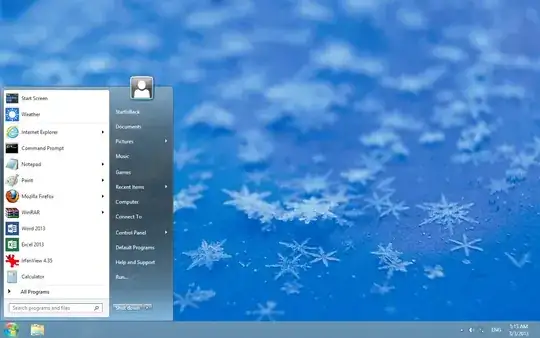
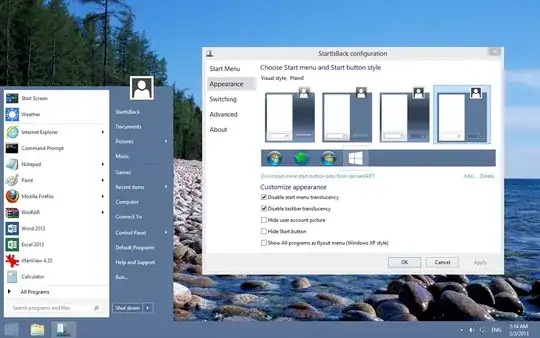
I prefer StartIsBack:
StartIsBack returns Windows 8 a real fully featured start menu and start button, behaving exactly like the ones in Windows 7.
StartIsBack radically improves desktop usability and makes new Start screen clutter-free.
StartIsBack is fully native lightweight zero-privileges program, cheap and fair, fast, stable and secure.

magicandre1981
- 97,301
- 30
- 179
- 245
0
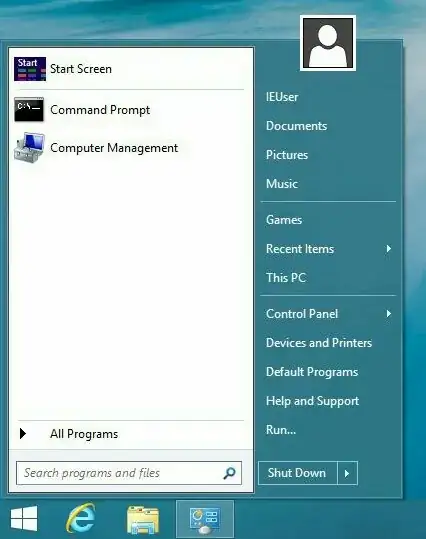
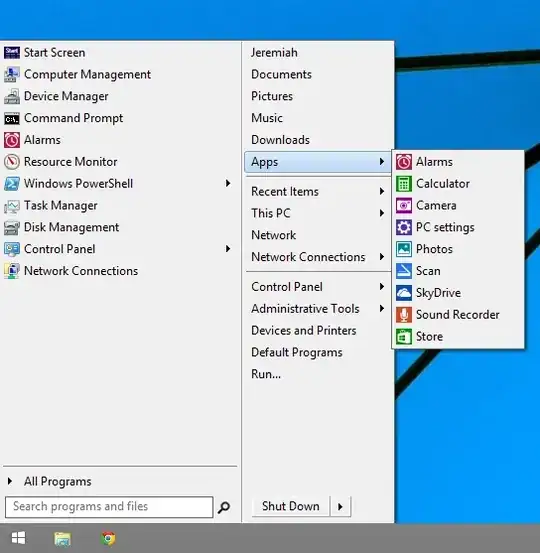
This is by far the best solution. I will describe the best way to get the Windows 7 user interface while retaining functionality.
You can use "Classic Shell", it can be found here: http://www.classicshell.net/ Not only will it replace the sad excuse for a start menu in Windows 8, it will allow you to customize it to your heart's content. This is by far the best replacement I have used.
Don't be fooled by the webpage, it looks very stock and professional once installed. The original Windows start icon can be kept.
When installing, make sure to only install the start menu. The package includes a classic file browser which you may not want.
Classic Shell will disable any part of Modern UI, and it can boot you directly into the Desktop. These options are in the settings.
To access the Metro Windows 8 start menu, you can hold shift and click the start menu or just click on "Start Screen" which will be in the new menu. You can configure an "Apps" menu item that will allow you to open any Windows Store App without using Metro.
To see Metro Apps in the Taskbar and to see the Taskbar in Metro Apps, see this page:
http://windows.microsoft.com/en-us/windows-8/use-the-taskbar
If you don't see this option, make sure all the latest updates are installed. You may need to run Windows Update and reboot several times.
Here are a few examples, there are hundreds of possible configurations:

JeremiahBarrar
- 1,060
- 9
- 14