67

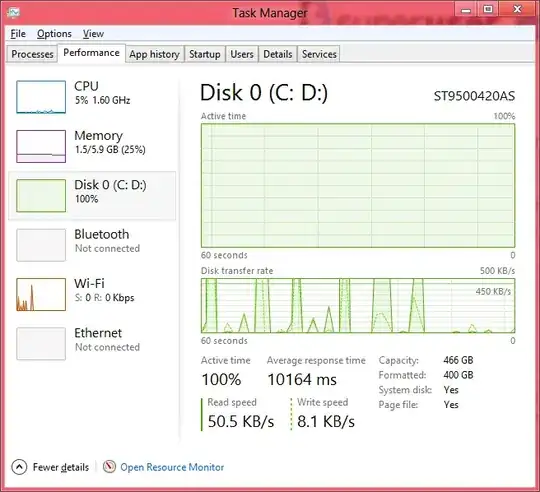
In a nutshell, the problem looks like this picture:

enter image description here

In short, gigantic latency, very slow read speed (I assume that is caused by the same thing). After a very very painful few minutes, everything seems to go back to normal.

What the heck is going on that can cause that?

Note: Note the fact that 100% activity happens at a wide range of speeds.

soandos
  • 24,206
  • 28
  • 102
  • 134
  • 3
    Are there any read errors on the disk (not reported to windows if the disk can eventually read the data on its own. Even if that takes a long time before it succeeds). - Check SMART data for increasing reallocated sectors. – Hennes Sep 05 '12 at 13:25
  • @Hennes 39 of those, and 100 each of uncorrectable sector count and pending sector count – soandos Sep 05 '12 at 13:26
  • 1
    Having such problems on a disk is not a problem. Every modern disk has at least a few. But keep monitoring. If that number increases then you have a problem (and likely also the reason for the low performance). If it stays the same then it is something else. – Hennes Sep 05 '12 at 13:50
  • BTW: Not all SMART values are standardised. But Seagate has nice manual for your drive at http://www.manualowl.com/m/Seagate/ST9500420AS/Manual/51279?page=32 – Hennes Sep 05 '12 at 13:55
  • Related, if not a duplicate: [How do I troubleshoot a slow hard drive?](http://superuser.com/q/443206/83694) – Deltik Sep 05 '12 at 21:53
  • 1
    I'm glad running chkdsk fixed this, but you could also check the Processes tab and sort by disk activity to see what is using the disk. I do this every time I boot, just because I'm like that. – Mark Allen Sep 06 '12 at 19:03
  • @MarkAllen I did this, and it was nothing interesting. Total speed consumed was still very very low. – soandos Sep 07 '12 at 02:09
  • Related: http://superuser.com/questions/649862/windows-8-hard-disk-usage-100 – Ƭᴇcʜιᴇ007 Sep 25 '13 at 15:17
  • I also have the exact same issue. I started with the screen shot same as above and ended up in this post by suggestion. This issue is around me since 3 month back. While googling I got the answer to set `high performance` I did it already, still the problem seems not end. It is actually there is no proper resource management in windows 8. It is not balanced with memory, cp speed and hard disk write speed. – Muneer Apr 16 '14 at 06:04
  • bytecodegenerator.exe is program with the aparently problem. – Jones Jul 07 '15 at 03:50
  • I checked "Resource monitor" and it showed me that disk usages was from "System Volume Infromation" folder. So I disabled "System Restore" and the issue with my 100% usage of HDD was fixed. – EnverOsmanov May 15 '21 at 18:30

9 Answers9

42

I had the same issue. I resolved it by changing the power plan from 'Balanced' to 'High performance'. Instant results.

Isaac Rabinovitch
  • 2,804
  • 1
  • 23
  • 30
Dan Sewell
  • 521
  • 1
  • 4
  • 4
  • 4
    Instant results for me also! – Dan Atkinson Jun 23 '13 at 13:47
  • 3
    +1 instant results here also... Anyone have a clue why this would happen? – Accatyyc Jul 03 '13 at 15:58
  • 1
    @Accatyyc I'm also experiencing, didn't try High Performance mode, but it might have something to do with the fact that W8 schedules a weekly defrag by default (you can turn that off in the "Optimize Drives" tool). Maybe the High Performance plan prevents background defragging in order to provide more resources? – T045T Aug 22 '13 at 11:46
  • 1
    @T045T I don't think it should be because of defragging, because in that case my computer would have been CONSTANTLY defragging. Which it shouldn't since I use Diskeeper which keeps the disks defragged. Your theory sounds plausible though, and in that case the W8 defrag scheduler needs a serious fix. Did high performance work for you? – Accatyyc Aug 22 '13 at 12:21
  • @Accatyyc I honestly can't say - I changed lots of things (disabled scheduled defrag, ran chkdsk, installed updates, high performance mode...) at once, so it might have been any of them. Just letting my laptop sit for a while until Windows had finished whatever it was doing worked for me, I guess... – T045T Aug 23 '13 at 16:10
  • This didn't work for me. I'm already using High Performance plan and I'm experiencing the same issue. – Nikola Malešević Aug 26 '14 at 06:56
  • 1
    The power plans can be customized though, so this solution doesn't get to the root of the problem. There must be a specific setting that's default for "high performance", and that is what we're after. – Bort Aug 13 '15 at 02:04
  • @Dan Sewell You are a life saver! – Learner Jan 26 '16 at 06:07
  • I used "Power saver" and after switching to "Hich performance" I can work again normally on my laptop. Tons of thanks! – Stefan Michev Jul 26 '16 at 16:21
  • What an insane answer... an insane solution to a ridiculous problem that exist in Windows 8 and Windows 10. Yet this answer solved my problem. I was ready throw in the towel on this $1200 laptop. <3 – Langdon Aug 06 '16 at 01:45
  • 1
    Didnt work for me – Petah Mar 25 '17 at 09:13
16

Running the following command appears to have fixed the problem:

chkdsk /b /f /v /scan c:

Explanation

In the chkdsk version included with Windows 10 these flags mean:

/b NTFS only: Re-evaluates bad clusters on the volume (implies /R)

/f Fixes errors on the disk.

/v On FAT/FAT32: Displays the full path and name of every file on the disk.

/scan NTFS only: Runs an online scan on the volume

/r Locates bad sectors and recovers readable information (implies /F, when /scan not specified).

Thanks to @hennes for the inspiration.

qubodup
  • 8,365
  • 7
  • 36
  • 49
soandos
  • 24,206
  • 28
  • 102
  • 134
  • `/r` implies `/f`. On NTFS, `/b` implies `/r`. `/scan` is not a valid parameter... So all you really need is `chkdsk /b /v /x C:` – Bob Dec 24 '12 at 04:04
  • 5
    @Bob `/scan` runs the scan online for windows 8 (new version of chkdsk I guess). Its not nessisary, but it means that I don't have to stop using my PC while chkdsk is running – soandos Dec 24 '12 at 04:08
  • Ah, interesting. So it can run on mounted disks? I'm currently on my Win7 machine, so I don't have that option. Though now I'm wondering why you're using it in conjunction with `/x`, since that forces a dismount... – Bob Dec 24 '12 at 04:10
  • @Bob because my normal way of doing chksdk is to mash options that won't add more work. Fixing it now – soandos Dec 24 '12 at 04:12
  • 2
    You might want to go with the original line, (I've just jumped into Win8), since it appears that `/r` does not imply `/f` if `/scan` is there. I'm getting a headache... – Bob Dec 24 '12 at 04:13
  • 1
    @Bob but does `/b` imply `/r`? (and how do you know that?) – soandos Dec 24 '12 at 04:15
  • Yea, that hasn't changed. Though doubling up commands doesn't really hurt, it just makes the line look scarier/more confusing. Run `chkdsk /?` to see the available options. – Bob Dec 24 '12 at 04:19
  • I tried `chkdsk /b /f /v /scan c:` but it hangs on 27% :( – Amir Karimi May 10 '13 at 16:29
  • @A.Karimi repeatedly? – soandos May 10 '13 at 20:00
  • @soandos - Yes repeatedly. – Amir Karimi May 11 '13 at 08:09
  • 1
    If chksdk seems to be stuck at "Scanning and repairing drive: 11%", wait patiently, it is proceeding, only the progress display is not updated. – thSoft Mar 11 '17 at 14:57
  • This solution does not work for me. – Irfan Ashraf Jul 29 '18 at 08:39
8

Another reason for extremely HDD usage is MS Windows Defender. There is some antimalware service under Windows 8 that belongs to Windows Defender.

Miroslav Holec
  • 181
  • 1
  • 2
  • 1
    I think this might be the key, whenever I see this happen for me in Resource Monitor MsMpEng always seems to be 1st, 2nd or 3rd in the list under the disk tab and I think it is doing something in the background but the Windows Defender interface doesn't show anything! – Paul C Jul 25 '14 at 15:27
  • I experience high disk usage from Windows Defender too. Did you solved it somehow? The Defender UI doesn't show anything running. – Piedone Aug 29 '14 at 19:22
  • 1
    I have Windows 10 with the same issue. Windows Defender is turned off cause I use NOD32. IMHO, it is not the defender that causes the 100% disk activity. – Miro J. Aug 25 '16 at 14:14
  • I disabled Windows defender anti-virus and saw the activity drop to normal (regular up and downs). When I re-enabled it, it no longer caused the spike. Not sure what the behavior will be when I restart. – Jake88 Sep 08 '18 at 03:00
4

I would check out your hard drive's performance.

Acronis Drive Monitor will work and is free. I use this, it's really good. However, like all of these things, it's only as good as the signal route - IE, a bad cable may cause false positives etc so if you can also test the cable you will have the extra reassurance (and of course then the port on the motherboard! Although normally, the results are pretty accurate I just wanted to point out it could be something else.)

Acronis Drive Monitor: Estimate health percentage, and use Windows Event Log events (which may be related to risk of data loss). Can trigger automatic backup on S.M.A.R.T. alert when combined with Acronis backup software.

Wikipedia also gives you an overview of such S.M.A.R.T tools (too much to copy across).

One of the contributors to this site, Ramhound suggests SpinRite (from another post). Despite it saying XP at places, it should work for W8 fine.

The results of reports based on S.M.A.R.T data should be taken into context. Many of the problems HDDs have they are not even aware of. The best way to have a healthy drive is to run it through a program that will read each and every sector often. This allows the HDD to move data from bad sectors to good sectors and then mark any sectors it determines as bad as unusable. This is far more useful then say a defrag although it should be said, running a defrag, often does exactl this. One program I use for for all my HDDs is SpinRite. – Ramhound
Dave
  • 25,297
  • 10
  • 57
  • 69
3

Use xperf from the WPT (part of the Windows 8 SDK) to trace the disk IO:

Link

Glorfindel
  • 4,089
  • 8
  • 24
  • 37
magicandre1981
  • 97,301
  • 30
  • 179
  • 245
3

To others: I had this exact same problem. Nearly identical screenshot to this one. Max usage, low throughput, latency through the roof. I tried disabling services--like indexing--, chkdsk, power management options, and even crazy things like disabling IPv6 per an Amazon review of my drive (desperate, I know). Nothing I did worked. So I did some research on my drive and unfortunately found that many many other users were experiencing the same issue.

Ultimately, I emailed the manufacturer of my drive and laid out my case, stating that this drive model was defective and requesting that I can send it in and receive the next model up in return (which has 1000+ good reviews). A friendly phone call later and for a very small fee, they complied (negotiate down their fee!). Yesterday I got the new drive and it's night and day. Incomparable. The old SSD was slower than spinning by a large margin, and the new one feels like every other proper SSD I've used. It's wonderful.

If you found this page because of similar issues, spinning or SSD, I'd highly suggest you do some Googling and potentially follow-up with the manufacturer to exchange it. I am very glad I did. Good luck.

  • I know sometimes this can be related to firmware on the SSD. So you can try upgrading the firmware before replacing the drive – Jonathan Nov 14 '16 at 22:58
  • 2
    What type of SSD was it? – Petah Mar 25 '17 at 09:09
  • I had a WD black installed giving the same problem. I think the hard drive was just broken however because it was working fine for 2 years.I tried formatting , this did not help. my solution was replacing it – DarkPh03n1X May 25 '18 at 23:29
  • I had a brand new Seagate Barracuda 8 TB drive behave this way. After 15-20 minutes of heavy write usage its write speed would drop to almost nothing and it'd peg at 100% Active and stay there forever (until I rebooted). After a day of trying all the desperate fixes I could find online I finally gave up and replaced it with a new drive, problem solved. – Jim Nov 09 '18 at 21:52
2

I found that Windows Update is a culprit. When I stop Windows Update Service, Disk read down to 5%.

Lombas
  • 426
  • 2
  • 11
Piriya J.
  • 21
  • 1
1

My download-HDD had almost the same symptoms.

It ended up being the SATA port which had broken, making the HDD go to 100% activity, but not reading or writing anything, whenever the HDD wrote to itself.

I solved it, by simply moving the SATA cable for the affected harddrive to another port.

0

Check if you have drive indexing turned on. In the past I've heard HDDs rip like chainsaws as they look over every file on the drive. Try disabling it temporarily from services and see if that changes anything.

random
  • 14,638
  • 9
  • 54
  • 58
Lee Harrison
  • 2,119
  • 13
  • 13